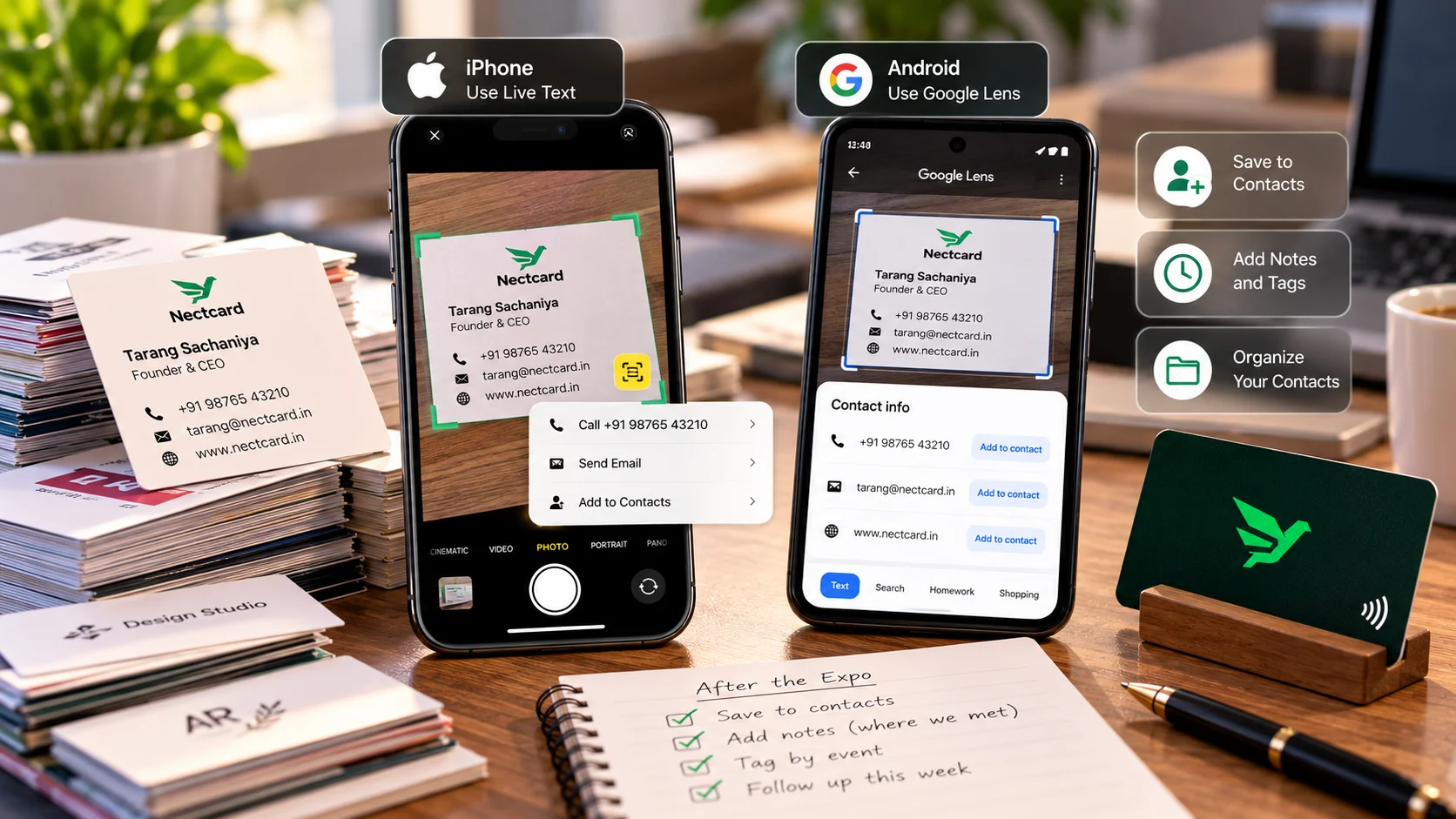
On an iPhone, point the Camera at the card, tap the Live Text button, then tap the phone number or email to get options such as adding it to your contacts. On Android, Google Lens can save the phone number or address from a card to a contact. Both work roughly one field at a time, so for a big pile a card scanner app is quicker.
The pile in your drawer
Somewhere in your desk there's a stack of cards from expos, weddings, a supplier's visit and that one CA you met at a family function. You keep meaning to save them. Meanwhile the one you need is always the one that's gone missing. People on business forums describe exactly this: cards kept in a pile slowly get lost, and long scanned documents of cards just get ignored.
The fix is to get the useful ones into your phone's contacts, where they'll show up when the person calls or when you search their name.
On an iPhone: use Live Text
- Open the Camera and point it at the card, or open a photo of the card in Photos.
- Tap the Live Text button that appears.
- Tap the phone number or email address on the card. Depending on what it is, you'll see options such as calling, emailing or adding it to your contacts.
- For the name, company or designation, touch and hold the text, adjust the selection and tap Copy, then paste it into the new contact.
- Check every field before you save.
One limit worth knowing: an Apple Community thread on this exact question didn't show a way to drop a whole card into Contacts in one go. The workaround people use is copy and paste.
On Android: use Google Lens
- Open Google Lens. It comes built in on Pixel phones and can be downloaded from the Play Store on other Android phones.
- Point it at the card, or open a photo of the card through Lens.
- Tap the phone number or address and choose the option to add it to a contact.
- Check the name and other fields and edit anything Lens got wrong, then save.
When a scanner app makes more sense
If you're facing fifty cards after an expo, tapping one field at a time gets old fast. Card scanner apps read the whole card and create the contact for you, and some let you tag each card with the event where you met. Forum users describe their piles shrinking once they started scanning instead of typing. Before you give any app access to your contacts, check what it does with that data.
| Method | Best for | Effort | Watch out for |
|---|---|---|---|
| iPhone Live Text | A few cards | One field at a time | Name and company need copy and paste |
| Google Lens on Android | A few cards | One field at a time | Check the fields before saving |
| Card scanner app | A big pile after an event | Batch scanning | Check accuracy and the app's data access |
| Typing it in yourself | One or two cards | Slow | Typos in numbers |
| Just taking a photo | Nothing, really | Lowest | It doesn't put them in your contacts, so their name won't show when they call |
Sort before you scan
Not every card deserves a place in your phone. A simple routine:
- Toss duplicates and cards from people you'll never contact.
- Keep the people you actually connected with, plus well-connected ones like founders and event organisers.
- Add a note to each contact: where you met and what you talked about.
- Tag or group contacts by event or category so you can filter later.
- Once a card is saved, recycle the paper or pass it on to someone who needs it.
If you want to stay in touch, connect with a few of the key people on LinkedIn within a day or two of meeting them, and keep a short list of people you'll message every so often.
How this works in different industries
- Real estate: you collect cards from brokers, channel partners and buyers at site visits. Add the project or locality to the contact note so you can find everyone linked to one project.
- Doctors and clinics: referring doctors, labs and medical reps all hand you cards. Put the speciality or hospital in the company field so a search for "cardio" brings up the right people.
- Sales teams: a prospect's card saved only on one rep's phone leaves with that rep. Get it into the shared sheet or CRM as well.
- Restaurants and retail: supplier and vendor cards pile up near the billing counter. Label them by what they supply, like "dairy" or "packaging", so whoever is on shift can find them.
- Freelancers and consultants: add the date and what the person needed to each prospect's contact, so your follow-up can mention it.
Make it easy for people to save you
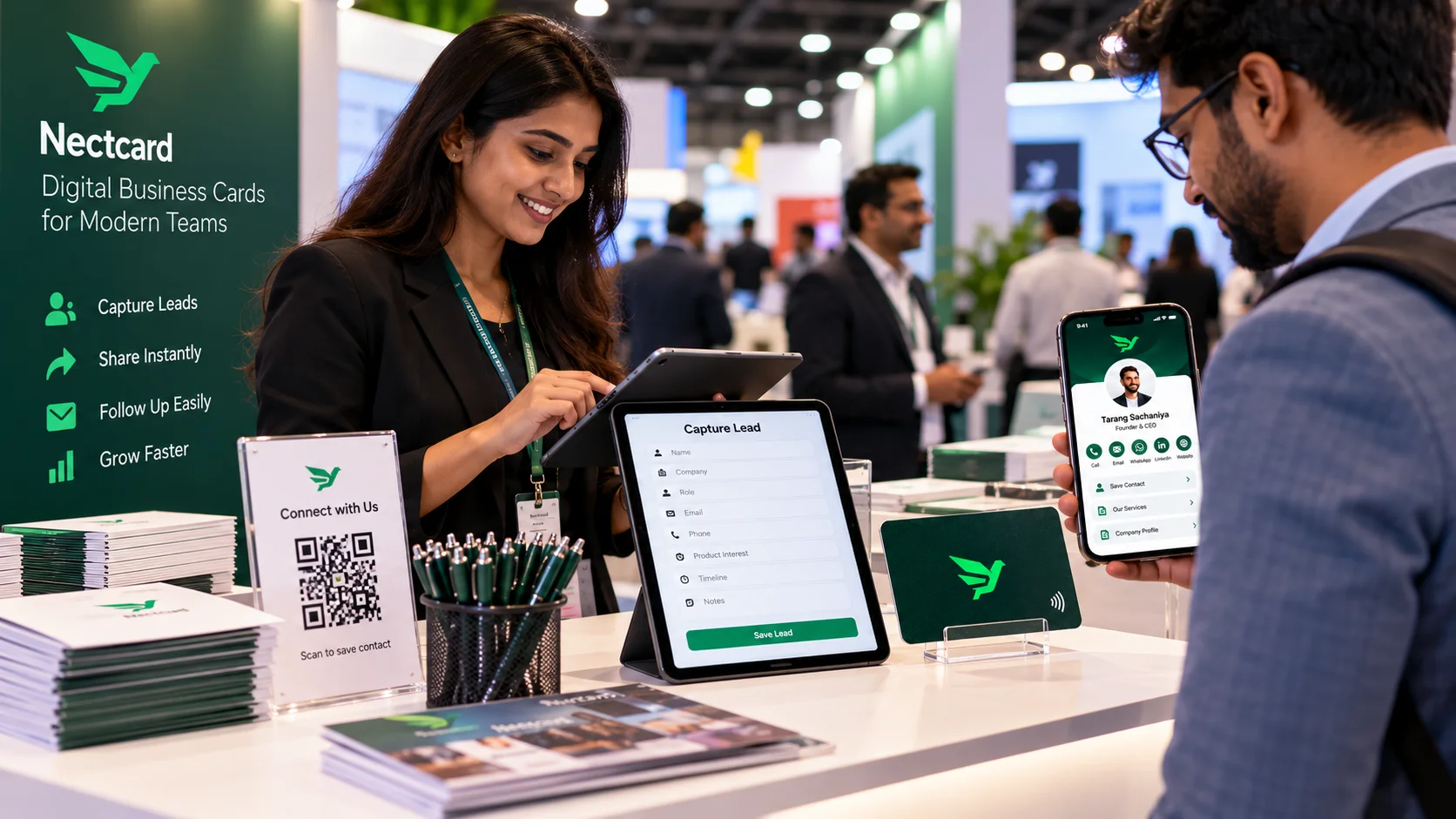
Here's the flip side: your card is sitting in someone else's pile too. With a digital visiting card, the other person taps or scans and gets a Save contact button that adds you to their phone in one tap. Nobody needs an app, and every Nectcard has a QR code backup for phones that don't tap. See how to share an NFC business card and what to put on it.
Mistakes to avoid
- Saving only a first name with no company or context
- Taking photos of cards and never moving them to contacts
- Trusting a scan without checking the phone number
- Keeping a client's card only on your personal phone when your team needs it
The short version
For a handful of cards, Live Text on iPhone or Google Lens on Android does the job. For a pile, use a scanner app, but sort first and add notes as you go. And make your own card one that people can save without any typing.
Want people to save you without typing?
A Nectcard digital visiting card adds your details to their phone in one tap, with a QR code backup.